Forge App for Confluence
SentinelVault
Open-source attachment protection & concurrent-edit prevention for Confluence Cloud.
Runs on Atlassian. Sentinel Vault is eligible for the Atlassian “Runs on Atlassian” program — it runs entirely on Atlassian-hosted infrastructure, supports data residency, and makes zero external network calls. No third-party SaaS, no data sharing, no surprises in your egress logs.
Zero data egress. File names, user identities, seal metadata — none of it ever leaves Atlassian. Compliant out of the box for organizations that prohibit third-party processing of Confluence content.
Overview
Confluence has no native file-locking mechanism. Any user with edit access can upload a new version of any attachment at any time — leading to concurrent edit conflicts, accidental overwrites, and no accountability. SentinelVault solves this by adding a platform-enforced seal (lock) layer on top of Confluence attachments.
File Sealing
Platform-enforced locks on individual attachments. Only the seal holder can modify the file. Seals track ownership, expiry, version, and download state.
Violation Detection & Auto-Revert
Real-time monitoring of attachment edits, deletions, and page content tampering. Violations are automatically reverted within seconds.
Beyond protection, SentinelVault provides full attachment management — upload, label, delete, restore — and multi-channel notifications that keep everyone informed about file status changes.
Getting Started
After your Confluence site administrator installs SentinelVault, you can start using it immediately.
1
Install & Add the Macro
Navigate to any Confluence page with attachments. Open the page editor and insert the Sentinel Vault macro from the macro browser (under the Admin category). Publish the page.
2
Seal an Attachment
The inline panel shows all attachments and their seal status. Click Seal next to any attachment you want to protect before editing.
3
Edit & Unseal
Edit the file with confidence — no one else can overwrite it while your seal is active. When done, click Unseal to release the lock. Watchers are notified.
If your administrator has enabled Auto-Insert Macro on Seal, you don't need to manually add the macro. The panel is automatically inserted into the page the first time you seal an attachment.
The Inline Panel
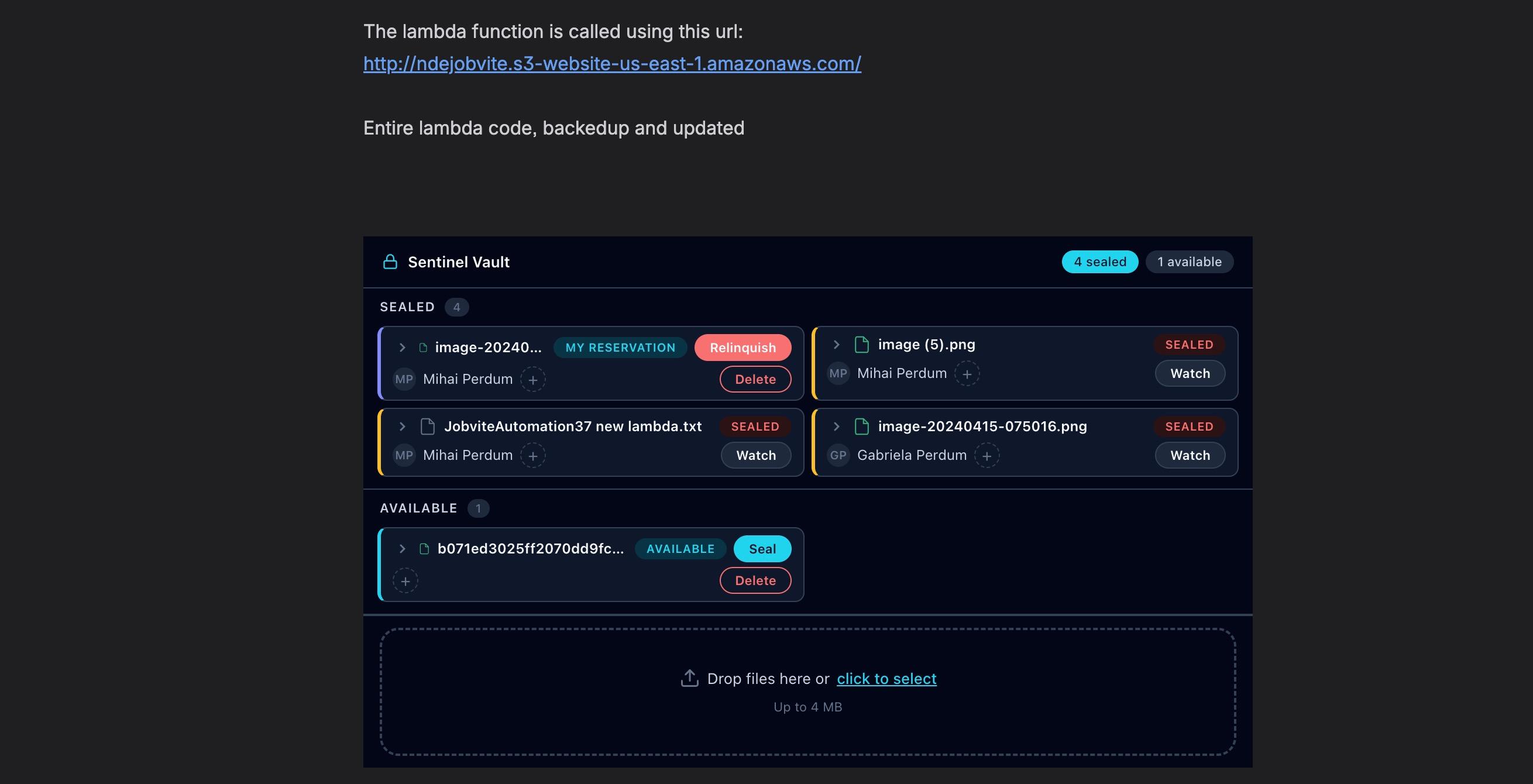
The primary interface for SentinelVault. A macro block embedded directly in your Confluence page, showing every attachment with its current seal status.
Features
Grouped sections — Sealed, Missing, and Available
One-click seal and unseal with countdown timer
Watch files sealed by others for release notifications
Add and remove labels for organization
Delete, Restore, and Purge lifecycle management
Drag-and-drop upload zone (max 4 MB per file)
Expandable Card Rows
Click the expand arrow on any attachment to reveal additional details:

- Thumbnail previews — Image attachments show a lazy-loaded preview for quick visual identification.
- View link — Opens the attachment preview directly in Confluence.
- Properties link — Opens the Confluence attachment properties page.
- Full metadata — Sealed by, time remaining, file size, file type, date, and version number.
The Overlay
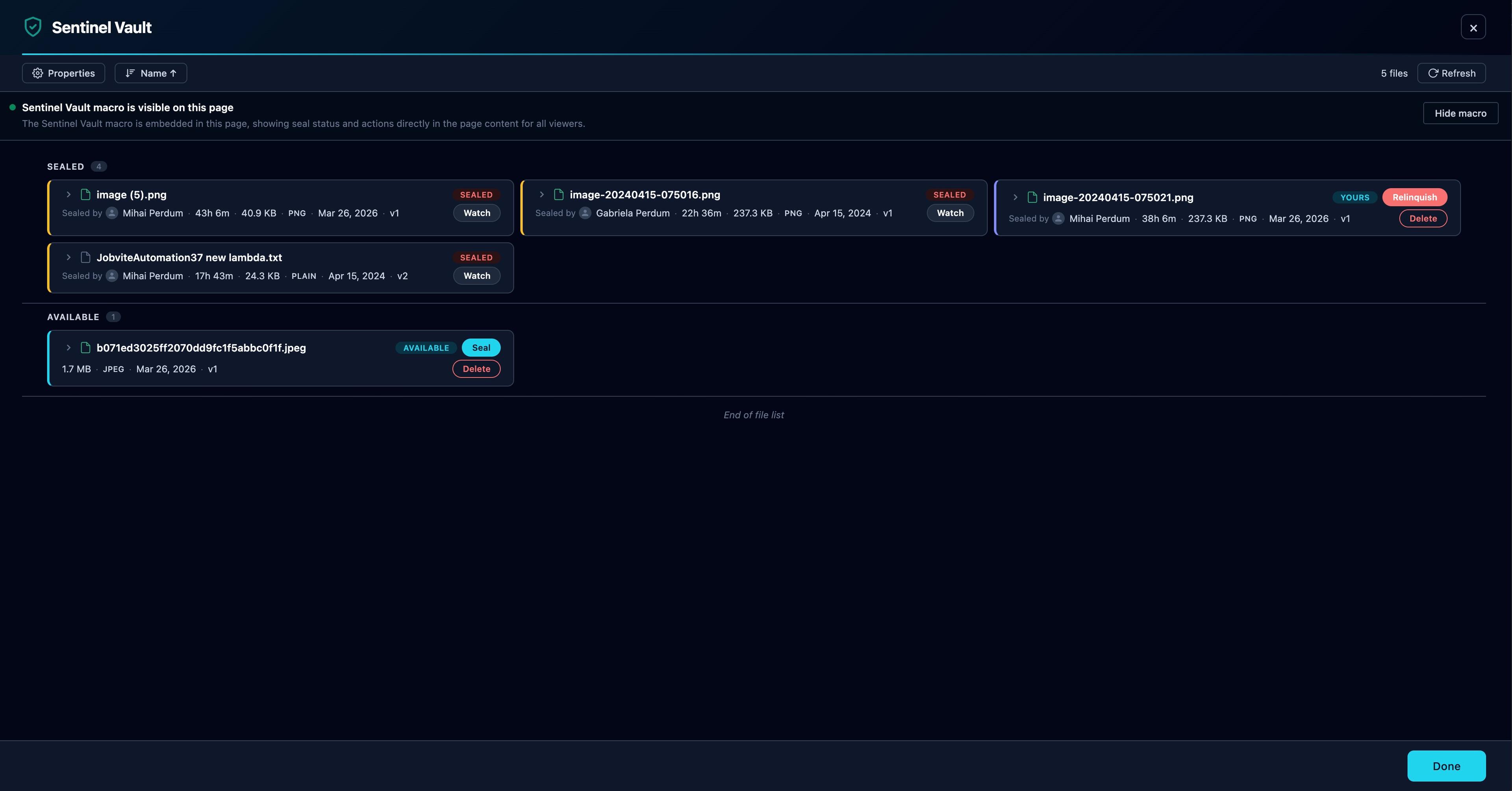
A full-screen modal for comprehensive attachment management. Open it by clicking Manage Attachments in the page banner or from within the inline panel.
Column Picker & Sort
Toggle visible columns. Sort by name, status, time remaining, or date. Preferences persist across sessions.
Pagination & Panel Toggle
Load more attachments for pages with many files. Show or hide the inline panel macro directly from the overlay.
Full Actions
Seal, unseal, upload, label, watch, delete, restore, and purge — all available from one interface.
The Page Banner
A persistent notification bar at the top of every Confluence page with sealed attachments. Provides at-a-glance seal status and quick access to the overlay.

Banner Features
- Seal count — Shows how many attachments are currently sealed on this page.
- Conflict alerts — Displays alerts when someone attempts to modify a sealed file, with automatic rollback confirmation.
- Expiry warnings — Alerts when your seals are overdue.
- Manage Attachments — Opens the overlay for full attachment management.
The banner auto-refreshes every 5 seconds to reflect changes made in other surfaces (overlay, inline panel) without requiring a full page reload.
Sealing & Violation Detection
A seal is a platform-enforced lock on a specific attachment. When sealed, a record stores the operator, timestamp, expiry, version, and download link. If anyone attempts to modify a sealed attachment, SentinelVault intervenes automatically.
Edit Protection
If someone uploads a new version of a sealed attachment, the previous version is automatically downloaded and re-uploaded, restoring the original file.
Trash Protection
If someone moves a sealed attachment to the trash, it is automatically restored. Permanent deletions trigger cleanup and owner notification.
Content Protection
If a sealed embed is removed from the page body, it is surgically re-inserted at its original position without reverting other page changes.
All three violation types are handled automatically within seconds, with zero manual intervention. The seal holder's files and embeds are fully restored.
Watch / Notify Me
When you need to edit a file that's currently sealed by someone else, click Watch. Sentinel Vault posts a Confluence comment that @mentions you the moment the seal is released — whether manually, by expiry, or by steward override. Confluence emails you according to your personal notification preferences.
Sealing prevents modification (uploading a new version), not viewing. All users with page access can still download and view sealed attachments.
Attachment Management
Full attachment lifecycle management. Each capability is controlled by a separate administrator toggle.
| Action | What It Does | Admin Setting |
|---|---|---|
| Upload | Drag and drop or click to upload new attachments (up to 4 MB per file) | Always available |
| Labels | Add and remove labels on any attachment for organization and filtering | Always available |
| Delete | Remove unsealed attachments from the page (moves to Confluence trash). Sealed attachments cannot be deleted. | Allow Attachment Removal |
| Restore | Recover trashed attachments that still have seal data in SentinelVault | Allow Attachment Restore |
| Purge | Clean up leftover seal records for attachments that have been permanently deleted from Confluence | Allow Seal Cleanup |
Macro Configuration
The inline panel macro can be customized per instance via the macro settings icon.
| Setting | Options | Default |
|---|---|---|
| Column Visibility | Toggle: name, status, seal owner, labels, comment, actions, file size, file type, expiry | All visible |
| Items Per Page | 5, 10, 15, or 25 | 15 |
| Cards Per Row | 1, 2, or 3 | 2 |
| Show Upload Zone | On / Off | On |
Notification Channels
Four independent notification channels, each configurable in the Steward Console.
| Channel | Description | Visibility |
|---|---|---|
| Toast Messages | In-app popup notifications for immediate feedback on seal/unseal actions | Current user session |
| Page Banners | Persistent ribbon alerts at the top of the affected Confluence page | All page visitors |
| Native Notifications | Confluence footer comments that @mention the relevant user (seal owner, editor, watcher, or steward) for every lifecycle event. Confluence's own notification engine then emails the mentioned user, governed by their personal notification preferences. | All page viewers |
| Watch Notifications | Release notification posted on the page when a sealed attachment is released, mentioning the watcher | Watchers only |
Steward Console (Global Admin)
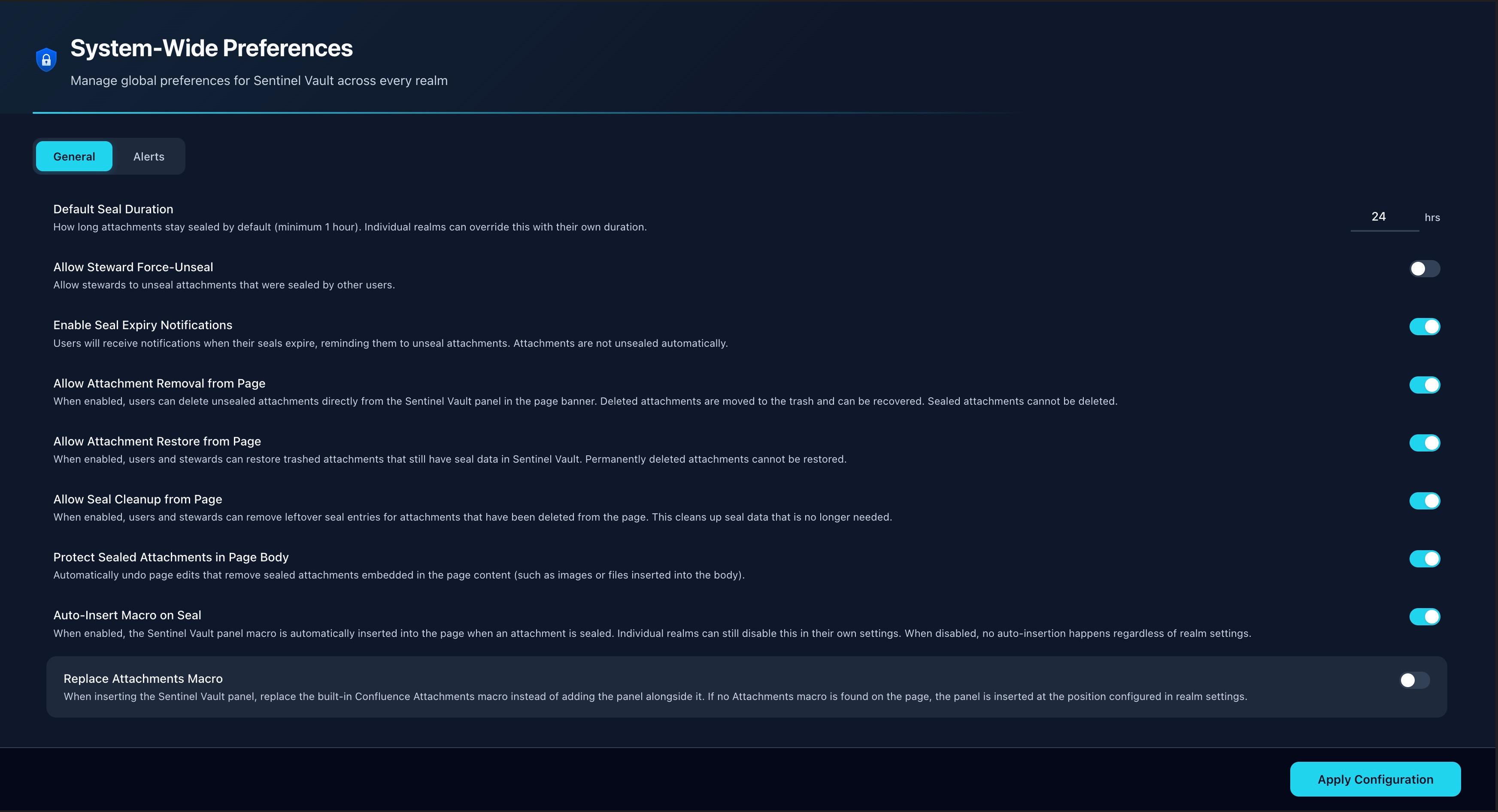
Accessible via Confluence Administration → Apps → Sentinel Vault Admin. Only site administrators can access this panel.
General Tab
| Setting | Description | Default |
|---|---|---|
| Default Seal Duration | How long attachments stay sealed (hours, minimum 1). Individual spaces can override this. | 24 hours |
| Allow Steward Force-Unseal | Allow stewards to unseal attachments sealed by other users | Off |
| Enable Seal Expiry Notifications | When on, users get expiry notifications and seals are released automatically. When off, seals persist past expiry with periodic reminders. | On |
| Allow Attachment Removal | Users can delete unsealed attachments from the panel (moves to trash) | Off |
| Allow Attachment Restore | Users and stewards can restore trashed attachments with seal data | Off |
| Allow Seal Cleanup | Users and stewards can purge leftover seal entries for deleted attachments | Off |
| Protect Sealed Attachments in Page Body | Automatically undo page edits that remove sealed media embeds | On |
| Auto-Insert Macro on Seal | Automatically insert the Sentinel Vault panel when an attachment is sealed | Off |
| Replace Attachments Macro | When inserting the panel, replace the built-in Confluence Attachments macro (only visible when auto-insert is on) | Off |
| Reminder Frequency | How often to send periodic reminder emails, in days (only visible when expiry notifications are off) | 7 days |
Alerts Tab
| Setting | Description | Default |
|---|---|---|
| Pop-up Notifications | In-app toast popups for seal/unseal actions and violations | On |
| Page Status Banners | Persistent banner at the top of pages with sealed attachments | On |
| Native Notifications | Master toggle for Confluence comments with @mentions on seal events (must be on for sub-options to work) | On |
| Seal Confirmation Notifications | Comment posted to the page after sealing, mentioning the seal owner (nested under Native Notifications) | On |
| Seal Expiry Reminder Notifications | Comment posted when a seal has expired, mentioning the seal owner (nested under Native Notifications) | On |
| Recurring Reminder Notifications | Banner-only reminders when expiry notifications are off — no comments posted, to avoid cluttering pages | On |
Realm Console & Roles
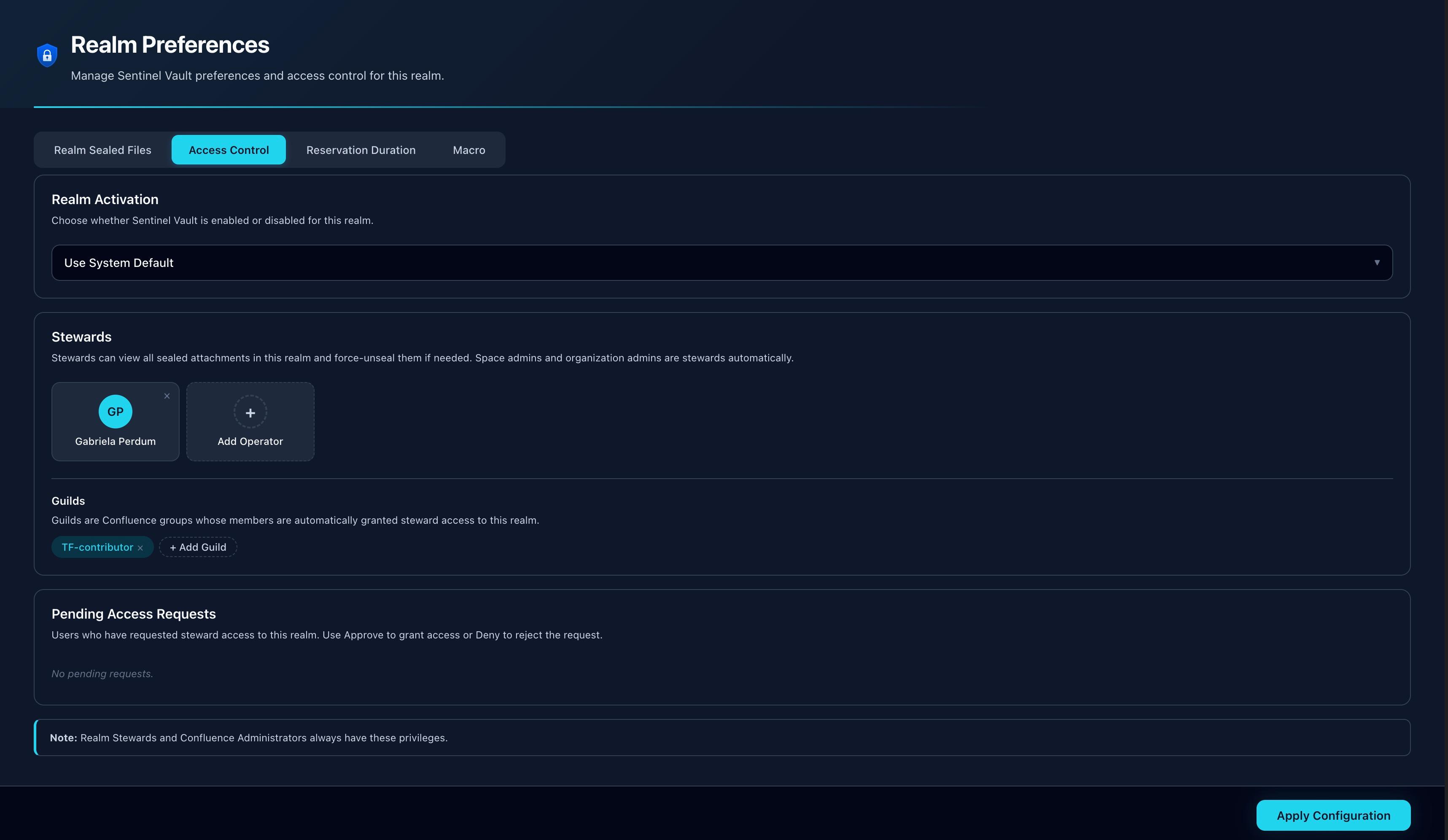
Space-level administration via Space Settings → Apps → Sentinel Vault.
Console Tabs
- My Sealed Files — View all attachments you have sealed in this space with a Relinquish button. (All users)
- Realm Sealed Files — View all sealed attachments across the space with column picker, sort, force-unseal, and watch. (Stewards only)
- Access Control — Realm activation toggle, steward management, guilds (group teams), and pending access requests. (Stewards only)
- Reservation Duration — Use the system default or set a custom per-space seal duration. (Stewards only)
- Macro — Configure auto-insertion of the panel macro and choose top or bottom page position. (Stewards only)
Roles & Permissions
| Role | Who | Capabilities |
|---|---|---|
| Operator | Any Confluence user with page edit access | Seal/unseal their own attachments, view seal status, watch others' seals, upload, label, request steward access |
| Realm Steward | Space administrators & delegated users | All operator capabilities + force-unseal, access control, realm policy, seal audit, approve/deny access requests |
| Guild Member | Members of designated Confluence groups | Same as Realm Steward — all guild members automatically receive steward privileges in the configured space |
| Site Administrator | Confluence site/org admins | Full access: global settings via Steward Console, steward capabilities in all spaces |
Steward status is determined by any of: Confluence space ADMINISTER permission, membership in a configured guild, explicit steward delegation, or site/org admin status. Regular users can request steward access — denied users may re-request after 48 hours.
Limits, Duration & Maintenance
Seal Duration & Expiry
Every seal has a duration, after which it is eligible for automatic release. The effective duration is resolved in order:
- Space override — Custom duration set in the Realm Console (if configured).
- Global default — Duration set in the Steward Console (default: 24 hours).
- Baseline fallback — 48 hours (hardcoded, used only when no admin configuration exists).
When expiry notifications are enabled (default), the hourly Expiry Sweep automatically releases expired seals and sends notification emails. When disabled, expired seals persist (showing “Overdue”) and the system sends periodic reminder emails.
Limits & Constraints
| Constraint | Limit | Notes |
|---|---|---|
| Upload file size | 4 MB | Per file, via the inline panel or overlay upload zone |
| Forge function timeout | 25 seconds | Realm scan consumer has extended 900-second timeout for large space audits |
| Seal duration | Configurable | Minimum 1 hour. Set via Steward Console or Realm Console. |
| Content protection retries | 3 attempts | Exponential backoff for version conflicts during page restoration |
| Steward re-request cooldown | 48 hours | After a denied steward access request |
Automated Maintenance
| Task | Frequency | Purpose |
|---|---|---|
| Expiry Sweep | Hourly | Releases expired seals, sends halfway reminder emails at 50% duration, sends expiry notification emails |
| Seal Index Cron | Hourly | Rebuilds performance indexes for realm seal lookups, using timestamp optimization to skip unnecessary scans |
| Recurring Nudge | Daily | Sends periodic reminder emails about sealed attachments (only when expiry notifications are disabled) |
| Realm Scan Consumer | On demand | Background queue processor for space-level seal auditing, triggered by stewards from the Realm Console |
| Attachment Trigger | Real-time | Detects and responds to attachment updated, trashed, and deleted events |
| Page Content Trigger | Real-time | Detects removal of sealed media embeds from page content and surgically re-inserts them |
Sentinel Vault has no external dependencies. Every notification is handled by native Confluence APIs — no third-party services, no API keys, no data egress. All data is stored in Forge KVS within the Atlassian Cloud platform.
Coming Soon
SentinelVault is actively developed. Here's what's on the roadmap:
Coming Soon
Edit Requests
Allow one or multiple users to edit a sealed attachment without granting full steward permissions. Collaborative editing with controlled access — the seal owner approves who can edit.
Coming Soon
Content Sealing
Go beyond attachments. Lock specific sections of a Confluence page to prevent unauthorized edits to critical content areas — headings, tables, decision logs — while leaving the rest of the page editable.
Coming Soon
Conditions & Validations
Add rules and validations to Confluence pages that are enforced on create and edit. Ensure content meets standards — required fields, formatting rules, approval gates — before publishing.
Coming Soon
Semantic AI Validations
AI-powered content validation using your own API keys (BYOK). Validate page content against custom rules, style guides, tone requirements, and compliance standards automatically.
Frequently Asked Questions
Can I seal multiple attachments on the same page?
Yes. Each attachment has its own independent seal. Multiple users can hold seals on different attachments on the same page simultaneously.
What happens if I seal a file and forget about it?
If expiry notifications are enabled (default), the seal will automatically expire after the configured duration. You'll receive a reminder email at the halfway mark. If expiry notifications are disabled, the seal persists and you'll receive periodic reminders.
Can someone still view a sealed attachment?
Yes. Sealing prevents modification (uploading a new version), not viewing. All users with page access can still download and view sealed attachments.
What happens when I remove a sealed image from a page?
If content protection is enabled (default), SentinelVault detects the removal and surgically re-inserts the sealed embed at its original position. Your other page changes are preserved — only the sealed media is restored.
How do I know when a sealed file becomes available?
Click Watch on any sealed attachment. Sentinel Vault posts a Confluence comment that @mentions you the moment the seal is released, and Confluence emails you according to your personal notification preferences.
How does Sentinel Vault notify me without sending emails directly?
When a lifecycle event happens — your seal expires, someone tries to edit a sealed file, a steward releases your seal — Sentinel Vault posts a Confluence comment on the relevant page that @mentions you. Confluence's built-in notification system then emails you according to your personal notification settings, exactly the way mention emails work for any other Confluence comment. You stay in control of what reaches your inbox.
What are guilds?
Guilds are Confluence groups assigned as steward teams in a space's Access Control settings. All members of a guild automatically have steward privileges in that space, without needing individual delegation.
How do I request steward access?
Open the Realm Console from space settings. In the My Sealed Files tab, click "Request Steward Access." A steward will review your request. If denied, you can re-request after 48 hours.
The delete/restore/purge buttons aren't visible.
These actions are disabled by default. A site administrator must enable them individually in the Steward Console General tab.
Is my data stored outside of Atlassian?
No. All seal records and configuration are stored in Forge KVS, which is hosted within the Atlassian Cloud platform. Sentinel Vault makes zero external network calls — every notification is delivered through native Confluence APIs.
Free & Open Source
Get SentinelVault
Free on the Atlassian Marketplace. Install it in seconds and start protecting your Confluence attachments. The complete source code is also available on GitHub for transparency and community contribution.