How to Block Time Logging on Specific Work Types in Jira Cloud (Using Workflow Properties)
Gabriela Perdum
Author
5 min readApril 9, 2026
Your organisation uses Tempo Timesheets and needs to prevent users from logging time against certain Jira issue types — like Risk, Assumption, or any work type that exists for tracking purposes only. There’s no toggle for this in Tempo. But there’s a workflow property that does exactly what you need, and it takes five minutes once you know where to look.
You have issue types in Jira Cloud that exist purely for tracking — risks, assumptions, dependencies, decisions, whatever your framework calls them. Nobody should be booking hours against them. The work isn’t there. The issue type is a record, not a task. But Tempo Timesheets doesn’t know that, and it happily presents a “Log Time” button on every single issue regardless of type. Users log time against things they shouldn’t, timesheets get polluted, and your project manager starts sending emails asking why someone booked two hours to a risk that hasn’t materialised.
You go looking for a setting in Tempo to restrict time logging per issue type. There isn’t one. Work Attributes are global — you can’t scope them by project or issue type. Tempo Accounts can be closed, but that’s a different axis of control entirely. The feature request for per-project work attribute filtering has been sitting in Tempo’s Ideas Portal since 2019 with 68+ votes and no implementation timeline. The fix isn’t in Tempo. It’s in Jira’s workflow engine.
The Property That Does the Work Jira Cloud workflows support status-level properties — key-value pairs attached to individual statuses that override or restrict permissions while an issue sits in that status. The one you want is:
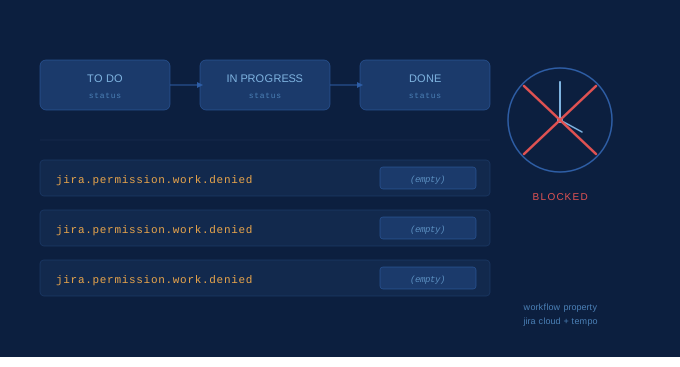
Key: jira.permission.work.denied
Value: (leave empty)
That’s it. When this property exists on a workflow status, Jira revokes the “Log Work” permission for any issue currently in that status. The “Log Time” button disappears from both Jira’s native interface and Tempo’s panel on the issue view. No time can be booked. No workaround from the user’s side.
The critical detail that will cost you an hour if you miss it: the value must be empty. The word “denied” in the key name is what triggers the restriction. If you set the value to true or denied, Jira may silently ignore the property. Leave the Property Value field blank.
Go to Jira Settings → Issues → Workflow Schemes. Find the scheme used by the project(s) containing your target issue type. Check which workflow is mapped to that issue type. If the issue type shares a workflow with other types that should allow time logging, you need to create a separate workflow for the restricted type first. Copy the existing workflow, give it a clear name and update the workflow scheme to map your issue type to the new copy.
This step matters. The property applies to the status, not the issue type. If Risk and Story share a workflow and you add the property to every status, nobody logs time on Stories either. Separate workflows for separate rules.
2. Add the Property to Every Status
Open the workflow in the editor. For each status in the workflow:
• Click on the status
• Select Properties
• Add a new property — Key: jira.permission.work.denied with an empty value
• Click Add
Repeat for every status. If you miss one, users can still log time when the issue is in that status. There are no shortcuts here — every status needs the property.
3. Publish the Workflow
Changes to workflows only take effect after publishing. Click Publish and confirm. If Jira asks about saving a backup, that’s fine — save one.
4. Wait
This is the part nobody tells you about. The property doesn’t always take effect immediately. In some instances, it kicks in within seconds. In others, it can take up to 30 minutes. If you test immediately after publishing and time logging still works, wait and test again before assuming something is wrong.
Common Mistakes That Will Waste Your Time
Setting the value to true. This is the most common mistake. Every Stack Overflow answer and half the Atlassian Community posts will tell you the value is true. It’s not. The Jira Cloud documentation for workflow properties states that .denied properties expect the value field to be left empty. The denial is encoded in the key name itself.
Including = true in the key name. If you accidentally type jira.permission.work.denied = true as the key (with the equals sign and value as part of the key string), you’ll end up with a nonsense property that does nothing. Check your properties list — you should see one clean entry with the key jira.permission.work.denied and an empty value column.
Forgetting to publish. Draft workflow changes are invisible to the system. If you added properties but didn’t publish, nothing happened.
Not checking workflow scheme mapping. You edited a workflow, but is it the one actually mapped to your issue type? Jira Cloud can have multiple workflow schemes, and projects can use different ones. Verify the chain: Project → Workflow Scheme → Workflow → Issue Type mapping.
Applying to a shared workflow. If your target issue type shares a workflow with other types, the property blocks time logging on all types using that workflow. Create a dedicated workflow for the restricted type.
What About Tempo’s Timesheet View?
Here’s a nuance worth understanding. The jira.permission.work.denied property is enforced at the Jira platform level. Tempo respects it when rendering the issue view panel — the “Log Time” button disappears. However, if a user tries to log time from Tempo’s main timesheet calendar by searching for the issue, Tempo will either block the submission with a permission error or prevent it from appearing as a loggable target.
The enforcement is solid for the standard workflows most teams use. If you have edge cases — API-created worklogs, bulk imports, or third-party integrations that bypass the Jira permission layer — those may need additional controls like post-hoc API audits or Tempo Account restrictions.
Applying This Across Multiple Projects
If the same issue type exists across several projects, each project may use a different workflow scheme and a different workflow. You need to apply the property in every workflow that is mapped to the target issue type across every workflow scheme.
The fastest way to audit this:
• Go to Jira Settings → Issues → Workflow Schemes
• For each scheme, check if your target issue type is present
• Note which workflow is assigned to it
• Add the property to all statuses in that workflow
• Publish
For organisations with many projects, this can be tedious. But it’s a one-time setup. Once the property is on the workflow, every new issue created with that type inherits the restriction automatically.
The Honest Take
This is one of those Jira Cloud situations where the answer is simple but the path to finding it isn’t. Tempo doesn’t expose this control because it’s not Tempo’s control to expose — it’s a Jira platform permission. The workflow property system is powerful but poorly surfaced. Most admins don’t think to look at status properties for time tracking restrictions because the UI never hints that they exist.
The property works. It’s stable. It’s been in Jira Cloud for years. The only real gotcha is the empty value, which contradicts what most people expect and what most community answers suggest. Get that right, publish, wait a few minutes, and your restricted issue types are locked down.
No apps required. No external services. No Tempo configuration. Just one workflow property on every status, and time logging disappears.